


This tutorial covers the steps to integrate Easy WP SMTP with Microsoft Teams.
Before getting started, make sure Easy WP SMTP is installed and activated on your WordPress site and that you’ve verified your license.
Accessing Email Alerts Settings
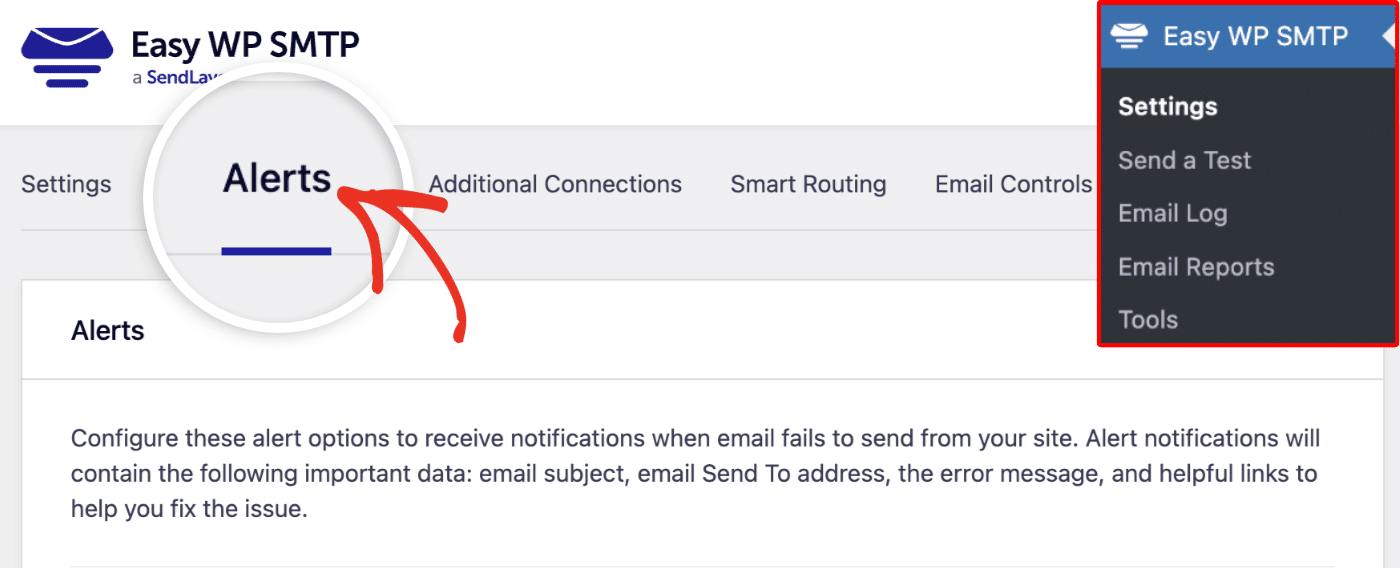
Start by navigating to Easy WP SMTP » Settings from your WordPress dashboard. Once here, click on the Alerts tab.
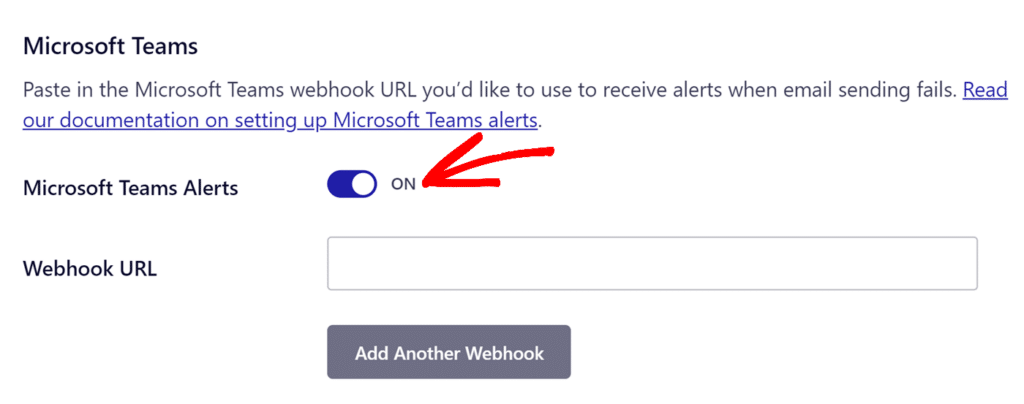
Then scroll to the Microsoft Teams section. To use Microsoft Teams integration, you’ll need to configure a webhook connection on the channel where you’d like to receive the alert and add its webhook URL to your site. Before doing this, ensure the Microsoft Teams Alerts option is set to the ON position.
Opening Microsoft Teams Channel Settings
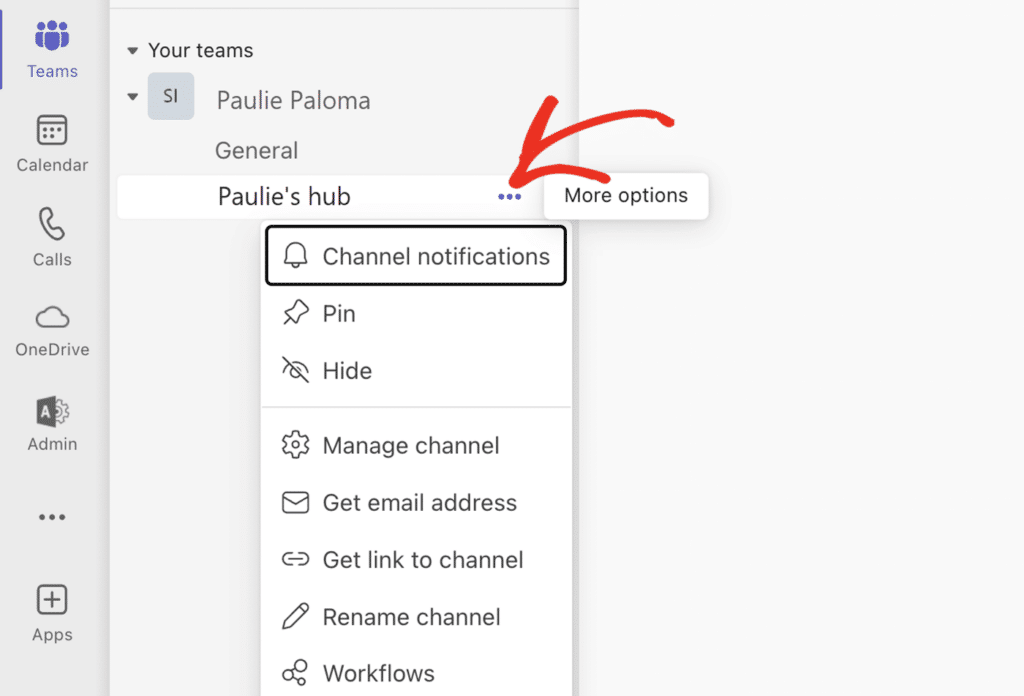
Next, log in to your Microsoft Teams workspace. Once there, open the channel you’d like to configure to receive alerts. Then click on the 3 dot icons next to the channel name to open additional settings.
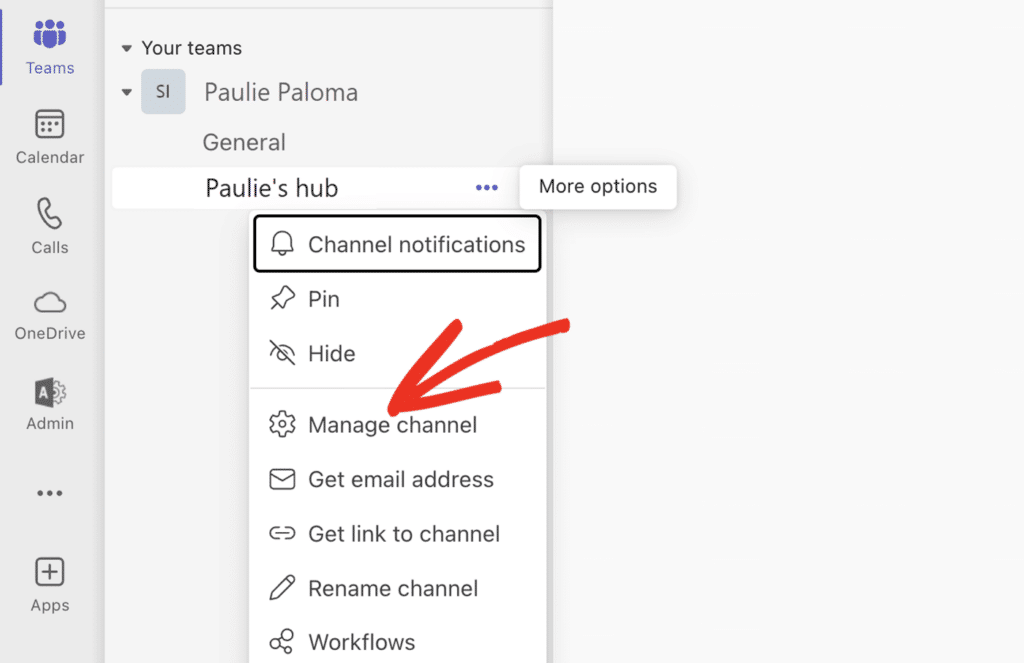
After that, click the Manage channel option to continue.
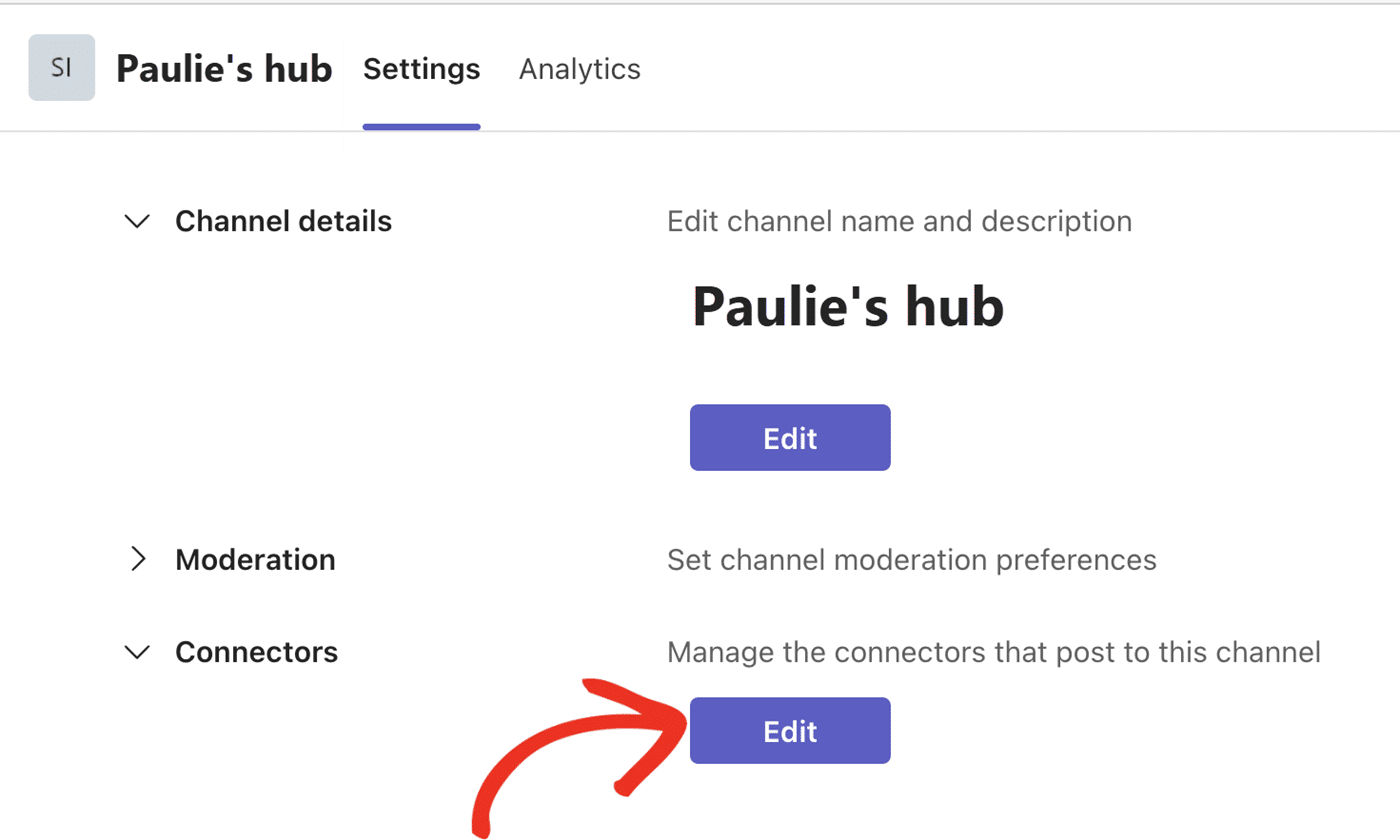
On the Settings page, you’ll see details about your channel. Go ahead and click the Edit button in the Connectors section.
Configuring Incoming Webhook
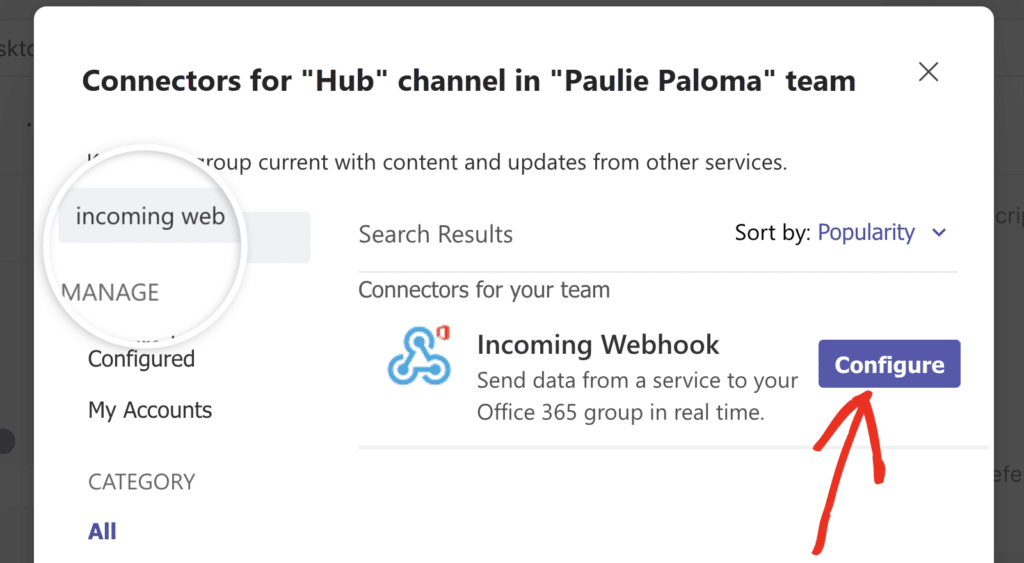
In the overlay that appears, type ‘incoming webhook’ into the search bar. Then click the Configure button next to the Incoming Webhook connector.
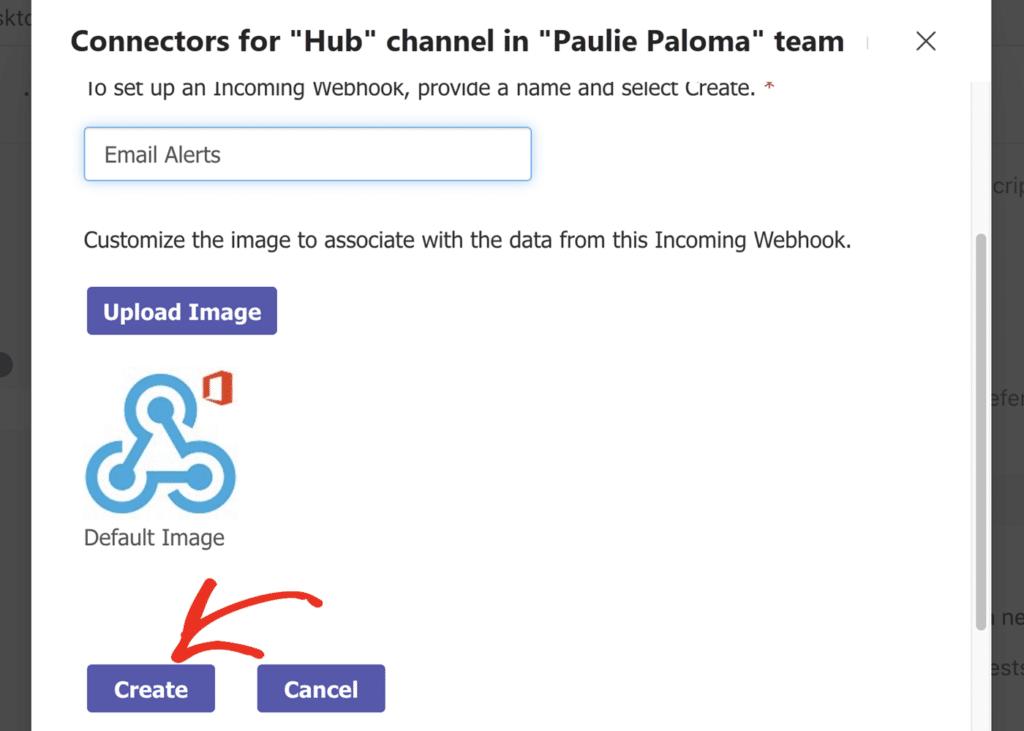
In the Incoming Webhook configuration page, you’ll need to enter a name for the connector. You can also upload an image you’d like to use as the display image for alert messages.
When you’re ready, click the Create button to save your settings.
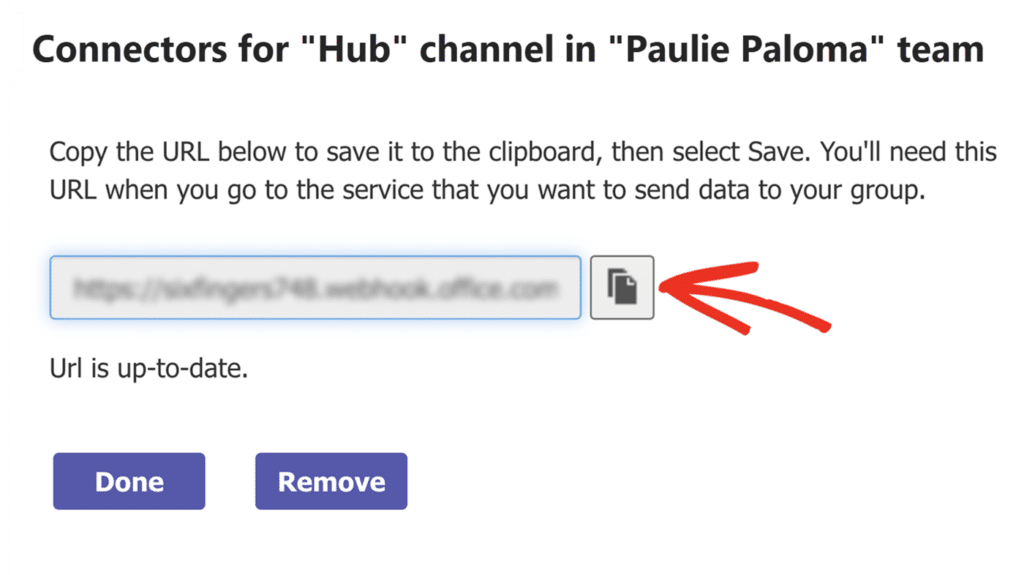
After that, Microsoft Teams will generate a webhook URL for your channel notification. Go ahead and click the Copy icon next to the webhook URL to copy its value.
Adding the Webhook URL
Finally, return to your Easy WP SMTP Alerts settings page and paste the URL into the Webhook URL field.
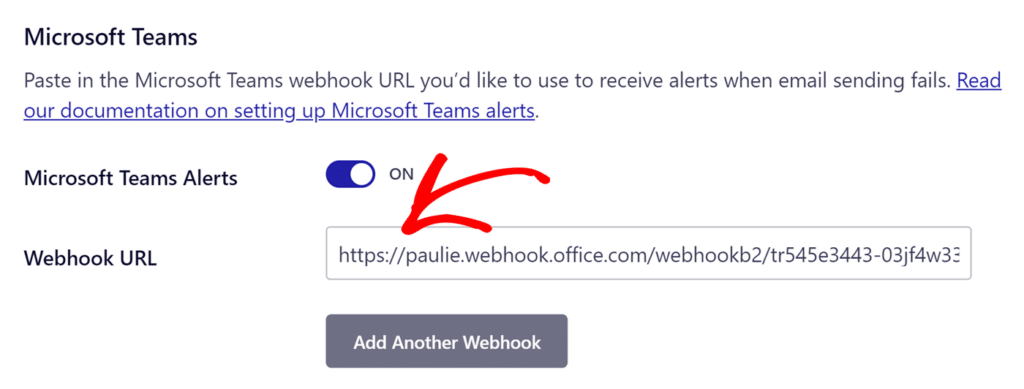
Once you’re done with this step, either save your settings or continue to add other integrations.
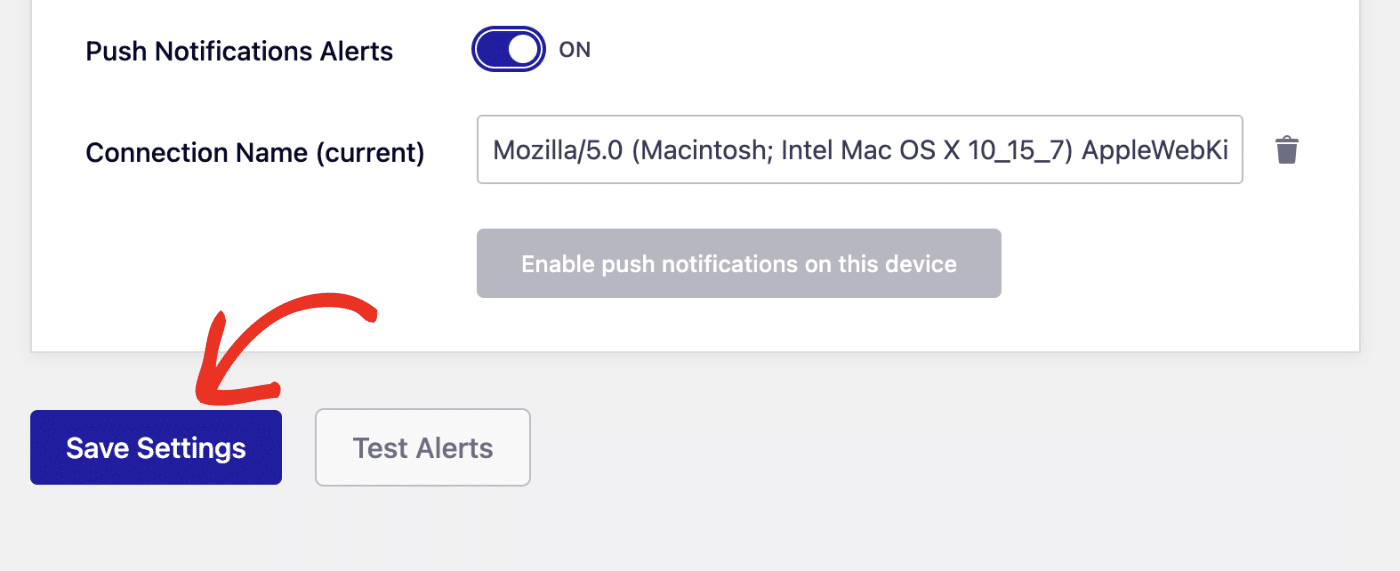
To save your settings, scroll down and click the Save Settings button.
Note: For more details on using webhooks in Microsoft Teams, be sure to check out Microsoft Teams Incoming Webhooks documentation.
That’s it! You’ve successfully connected Easy WP SMTP to your Microsoft Teams workspace. You’ll receive a notification whenever your site fails to send an email.