


This tutorial covers the steps to integrate Easy WP SMTP with Discord.
Before getting started, make sure Easy WP SMTP is installed and activated on your WordPress site and that you’ve verified your license.
Accessing Email Alerts Settings
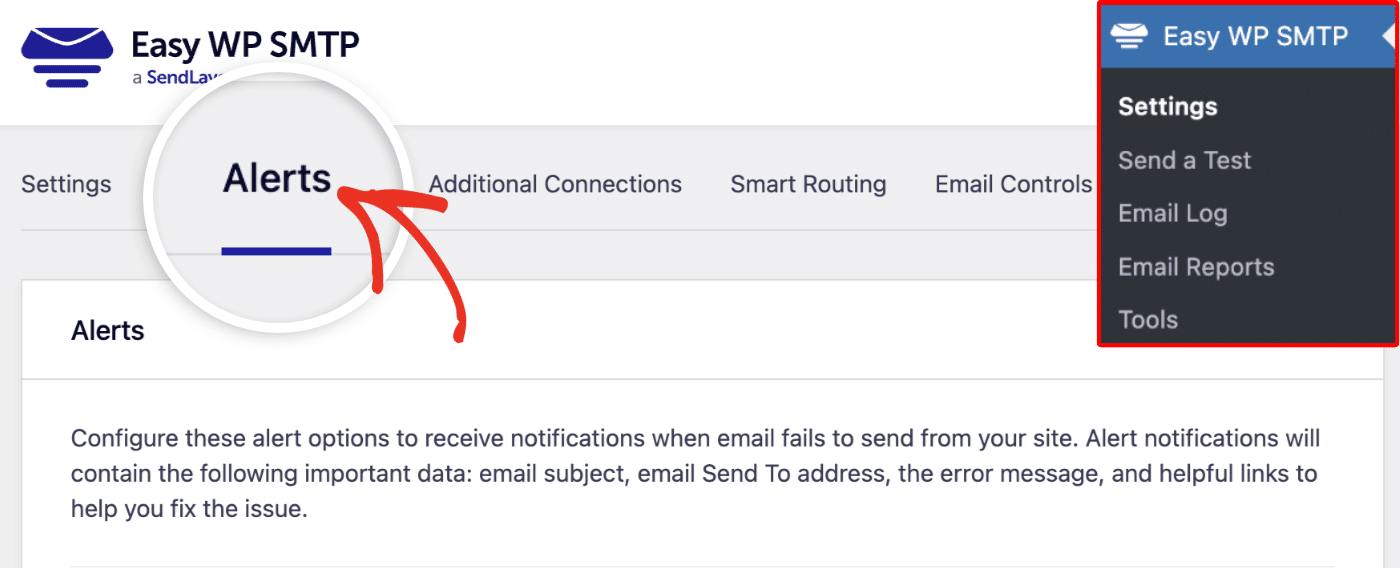
Start by navigating to Easy WP SMTP » Settings from your WordPress dashboard. Once here, click on the Alerts tab.
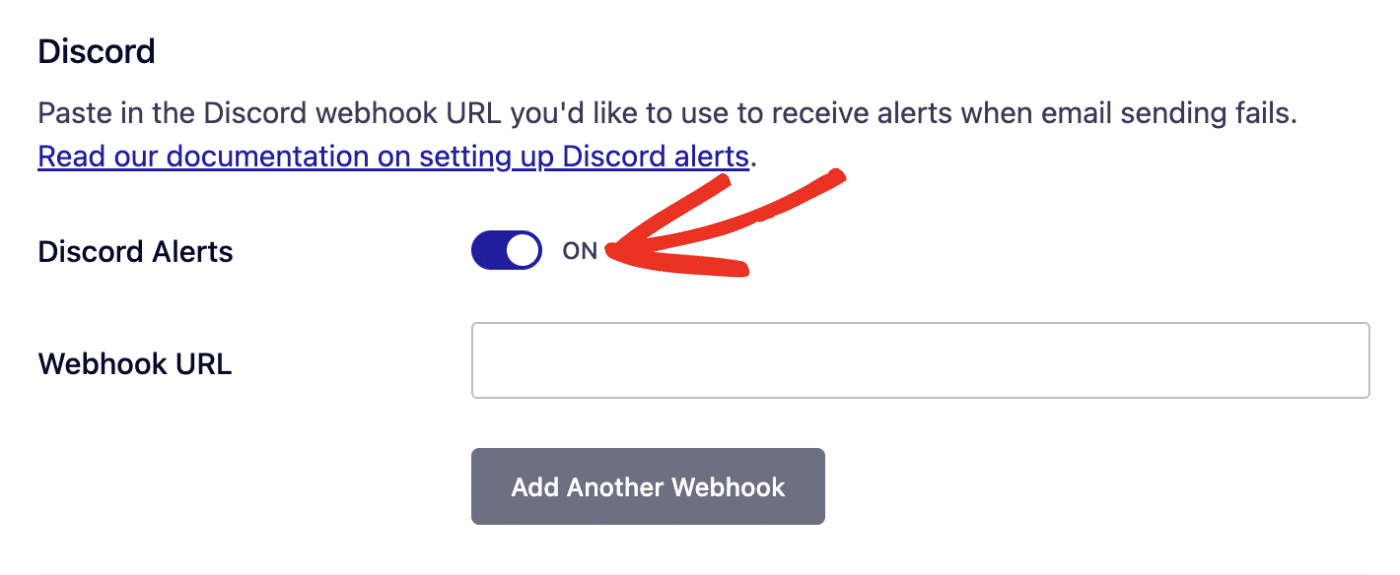
Then scroll to the Discord section. To use Discord integration, you’ll need to create a webhook connection on your Discord server and add its webhook URL to your site. Before doing this, ensure the Discord Alerts option is set to the ON position.
We suggest leaving this browser tab open, as you’ll return to it later.
Opening Discord Server Settings
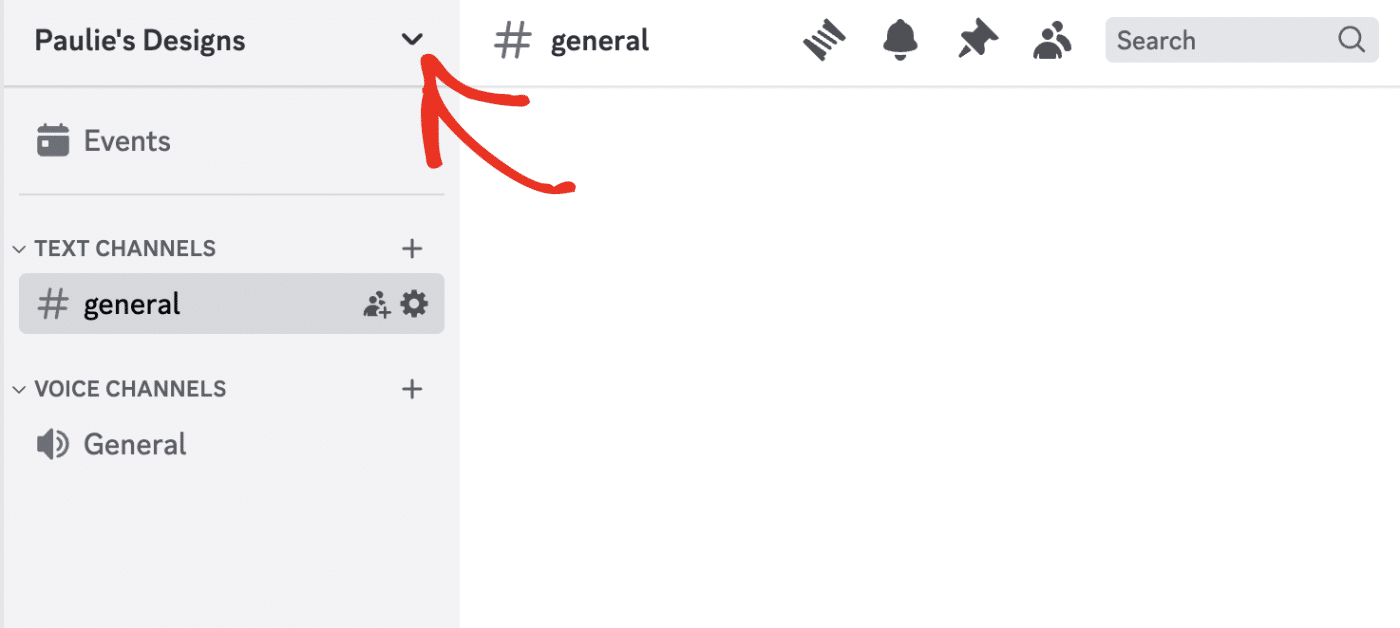
Next, log in to your Discord server. Once you’re logged in to Discord, click the Server’s name at the top left corner to open additional settings.
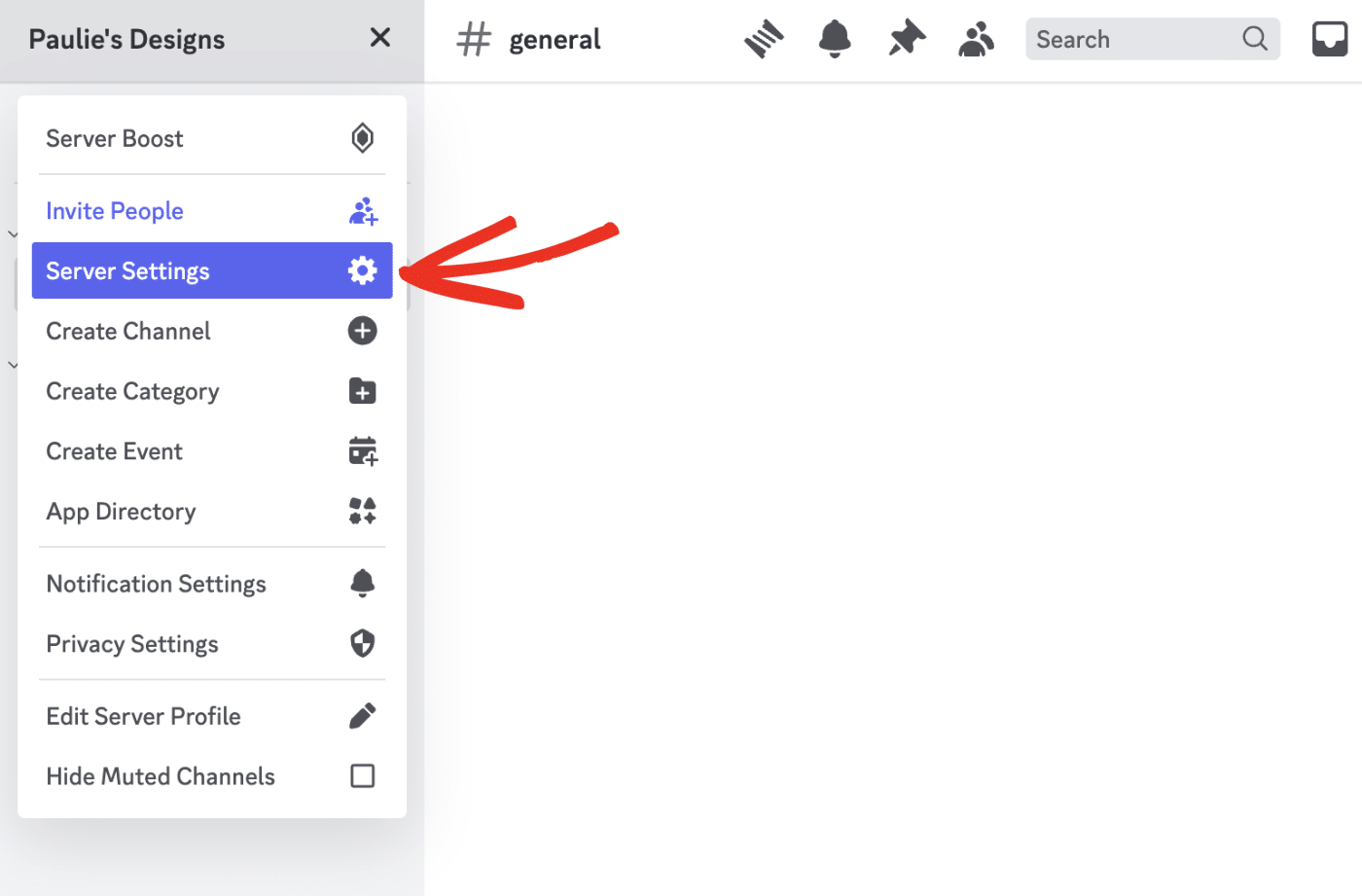
Then, select Server Settings from the dropdown menu.
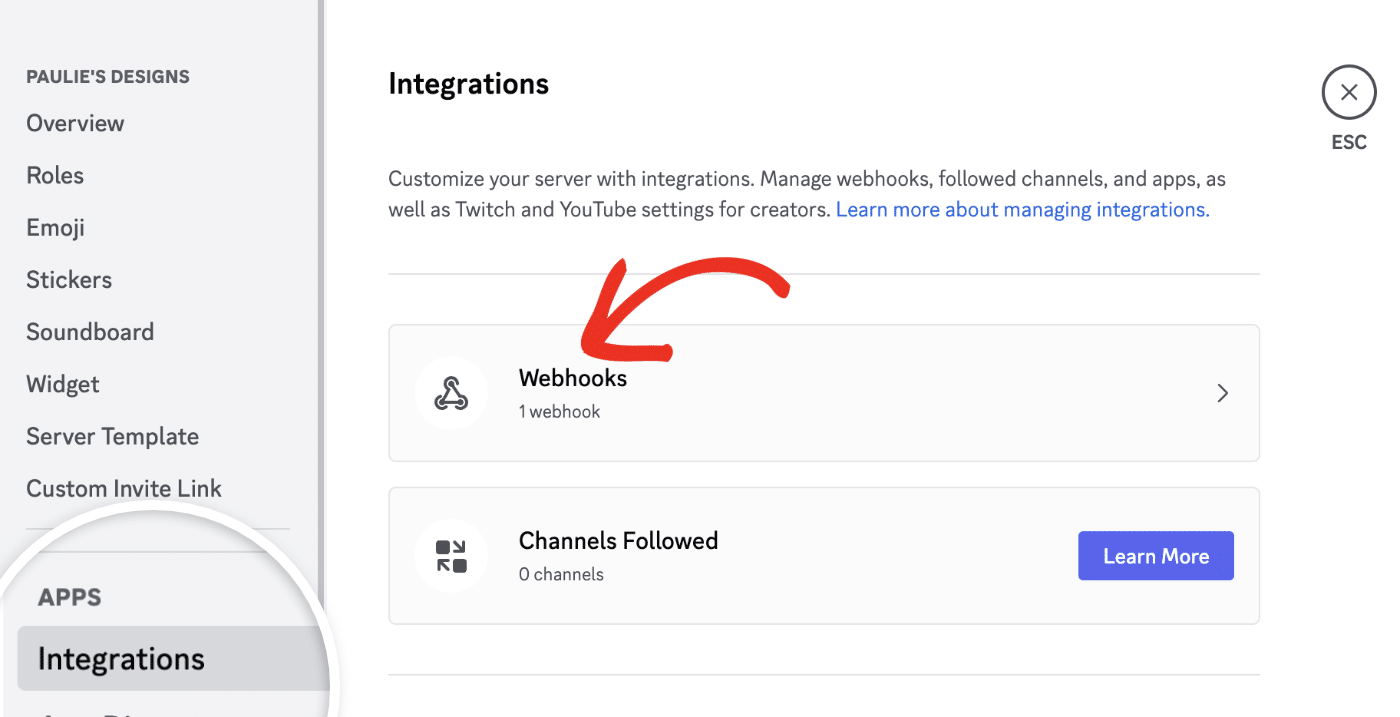
In the Server Overview page, select the Integrations sidebar menu and click on Webhooks.
Creating a Discord Webhook
Now click the New Webhook button to proceed.
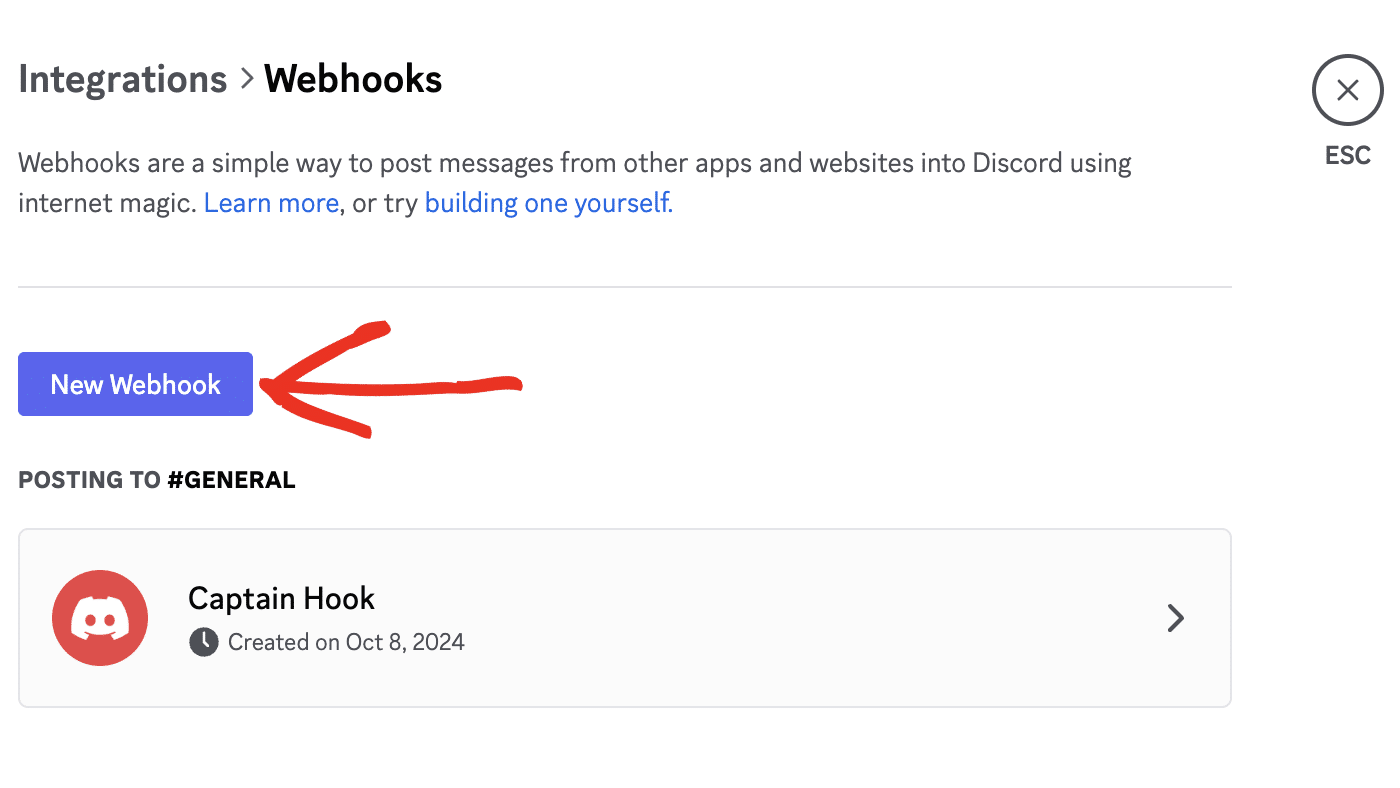
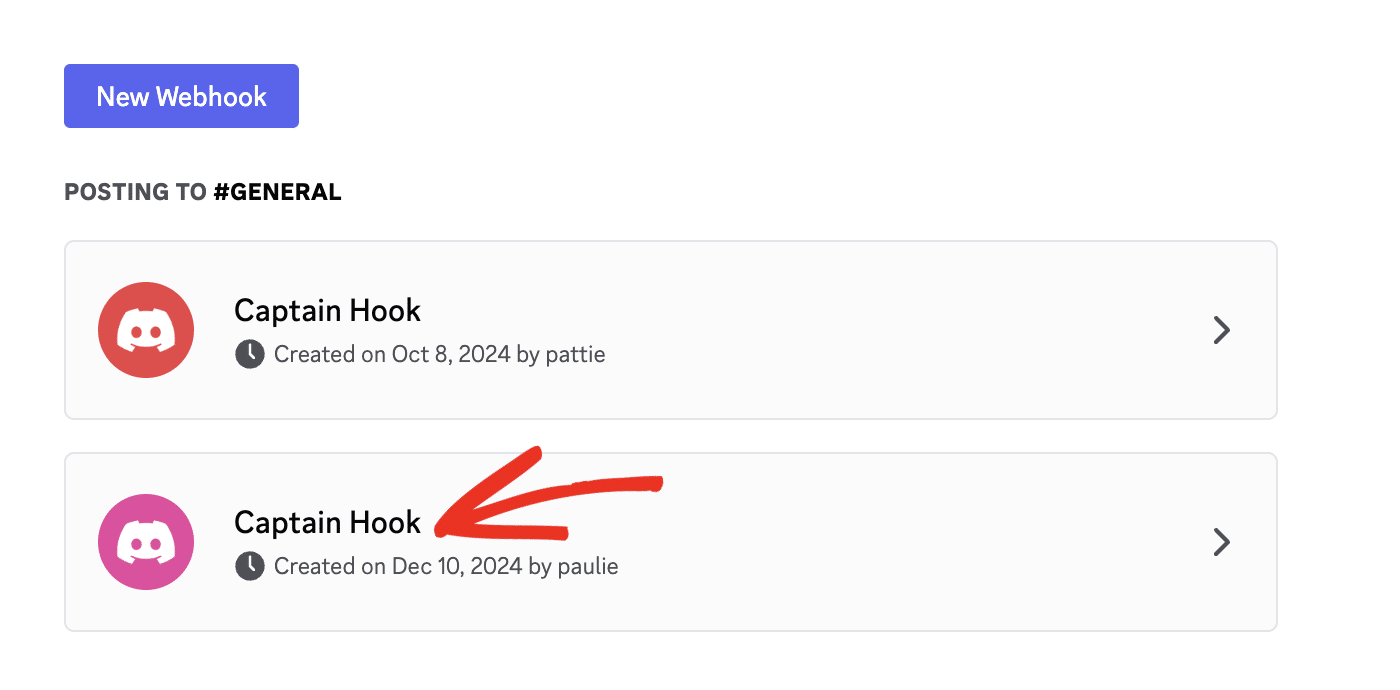
This will generate a new webhook connection for your Discord server. Go ahead and click the Webhook to view additional details.
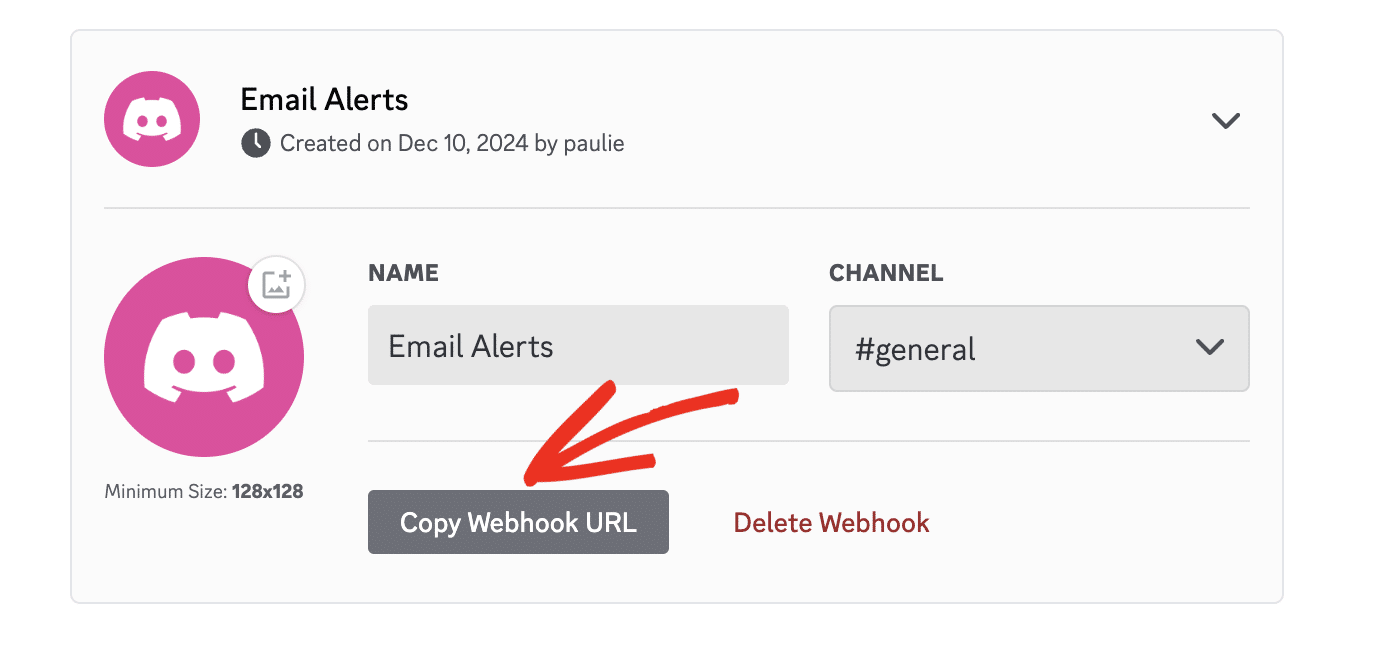
Next, enter a name you’d like to use in the Name field. Then, you’ll need to select the channel you’d like to send the email alerts to.
Note: You can update the webhook icon image by clicking the Photo icon next to the Discord logo.
When you’re ready, click the Save Changes button to update your webhook.
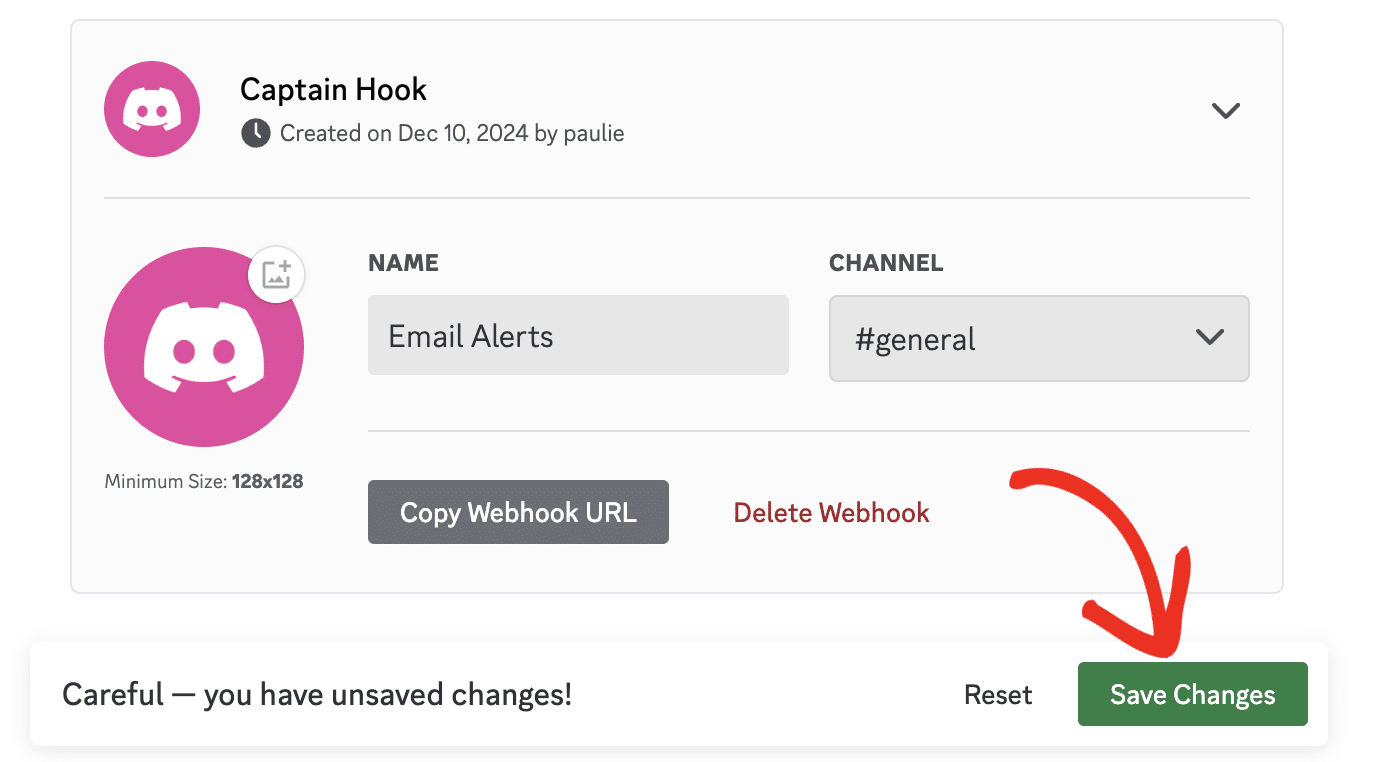
Now, click the Copy Webhook URL button for your new webhook connection.
Adding the Webhook URL
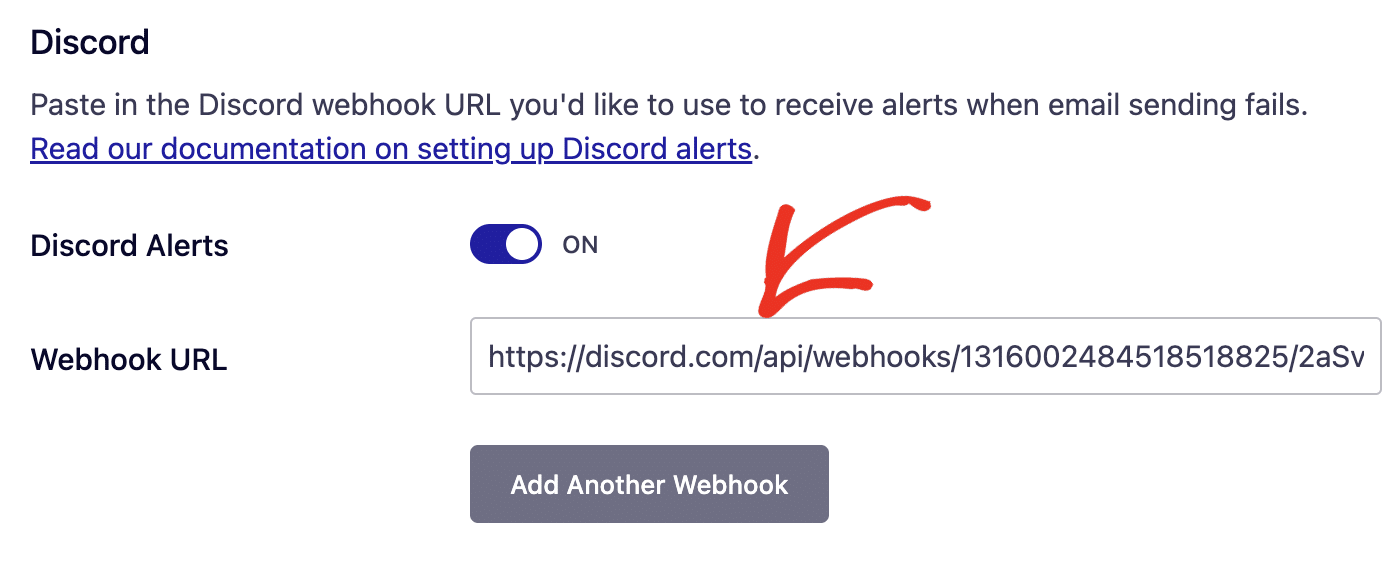
Finally, return to your Easy WP SMTP Alerts settings page and paste the URL into the Webhook URL field.
Once you’re done with this step, either save your settings or continue to add other integrations.
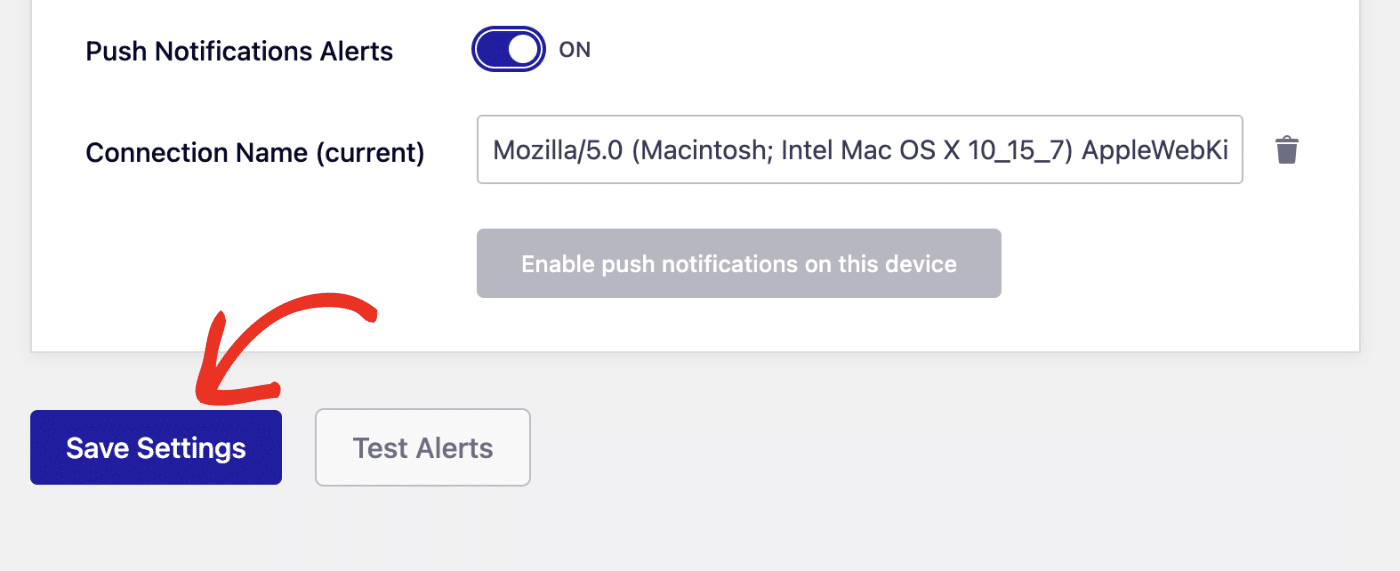
To save your settings, scroll down and click the Save Settings button.
Once everything is set up correctly, you’ll get notifications in your Discord Server whenever your site fails to send an email.
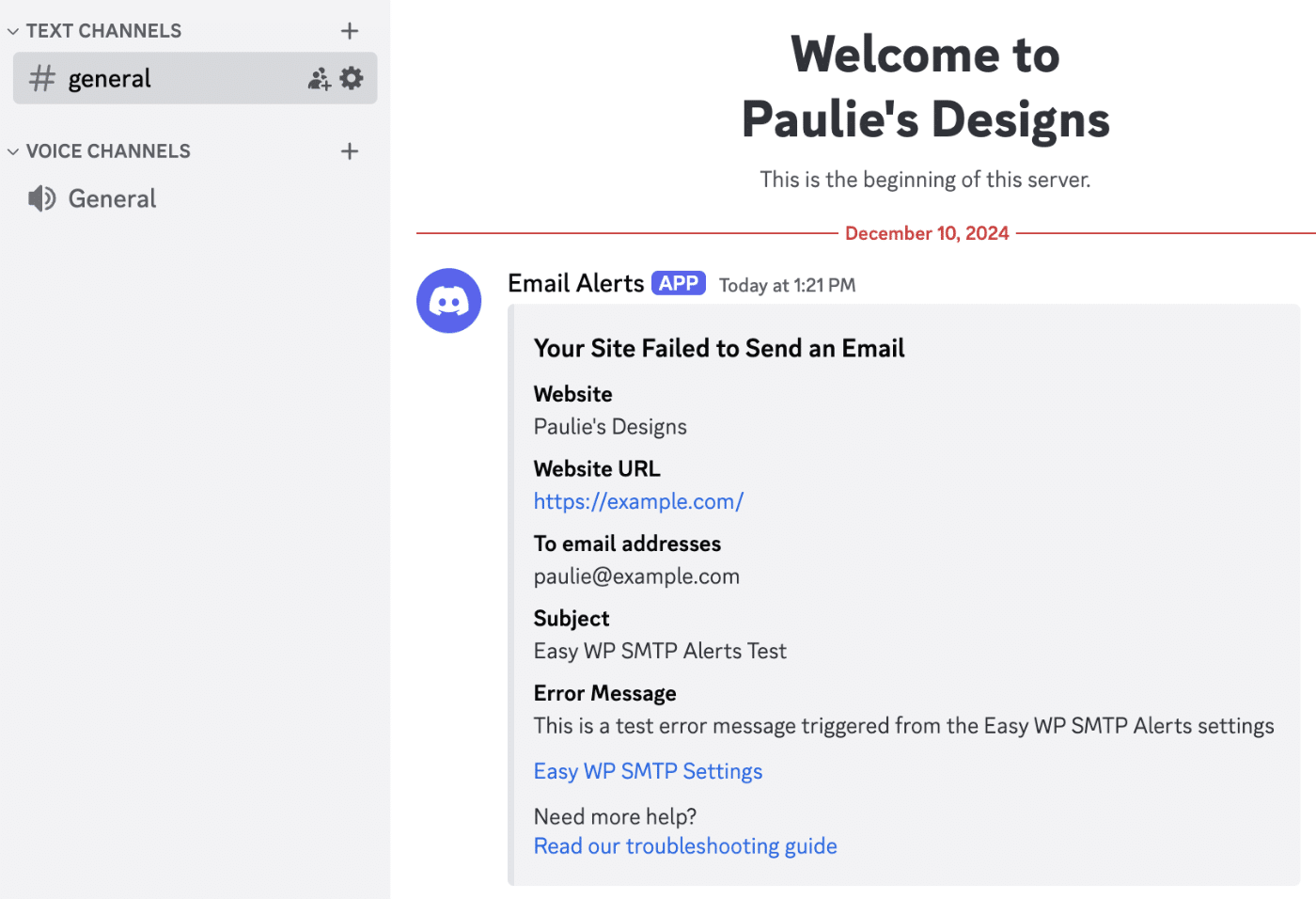
That’s it! You’ve successfully connected Easy WP SMTP to your Discord server.